

Sharing your screen during a Microsoft Teams meeting is a great way to present information, demonstrate software, or collaborate with your team. Here’s a step-by-step guide to help you do it effortlessly.
Step 1: Join or Start a Meeting
- Open Microsoft Teams: Launch the Teams app on your computer or mobile device.
- Join a Meeting: Click on the meeting link or join through your calendar.
- Start a Meeting: If you’re hosting, click on the “Calendar” tab and then “New Meeting” to schedule one or click “Meet Now” to start immediately.
Step 2: Locate the Screen Sharing Button
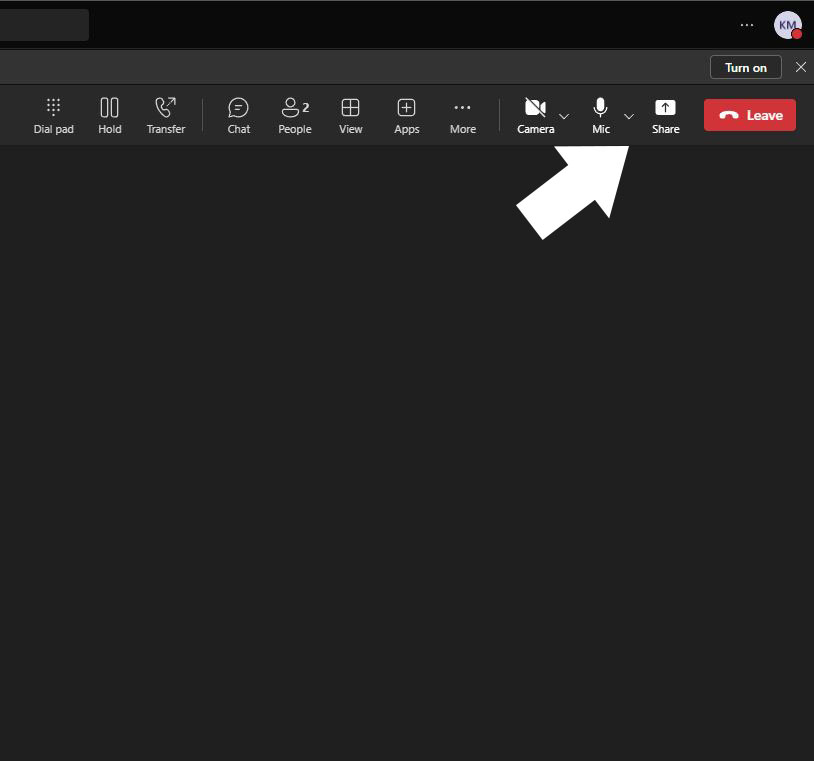
- Meeting Controls: Once you’re in the meeting, move your mouse to reveal the meeting controls at the bottom of the screen.
- Share Content Button: Click on the “Share Content” button, represented by an upward arrow inside a rectangle.
Step 3: Choose What to Share
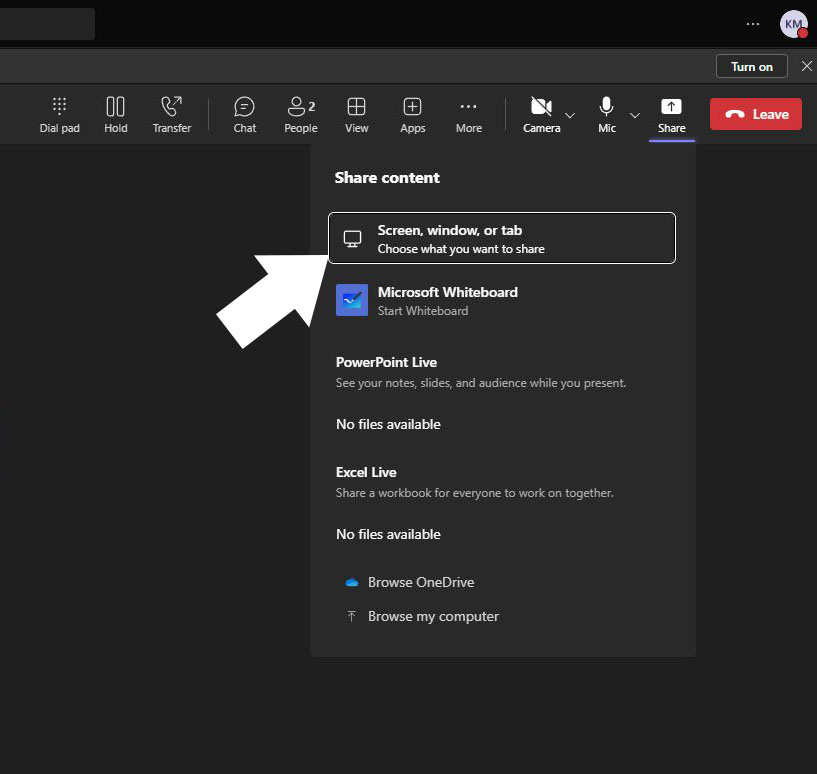
- Desktop: Share everything on your screen. This is useful if you need to switch between multiple applications.
- Window: Select a specific application window to share. This keeps your audience focused on one particular task or document.
- PowerPoint: Share a PowerPoint presentation directly, allowing you to navigate slides within Teams.
- Browse: Share files from your computer or cloud storage.
Step 4: Start Sharing
- Select Option: Click on the option you want to share (Desktop, Window, PowerPoint).
- Begin Sharing: Your screen or content will start sharing immediately with all participants in the meeting.
Step 5: Manage Screen Sharing
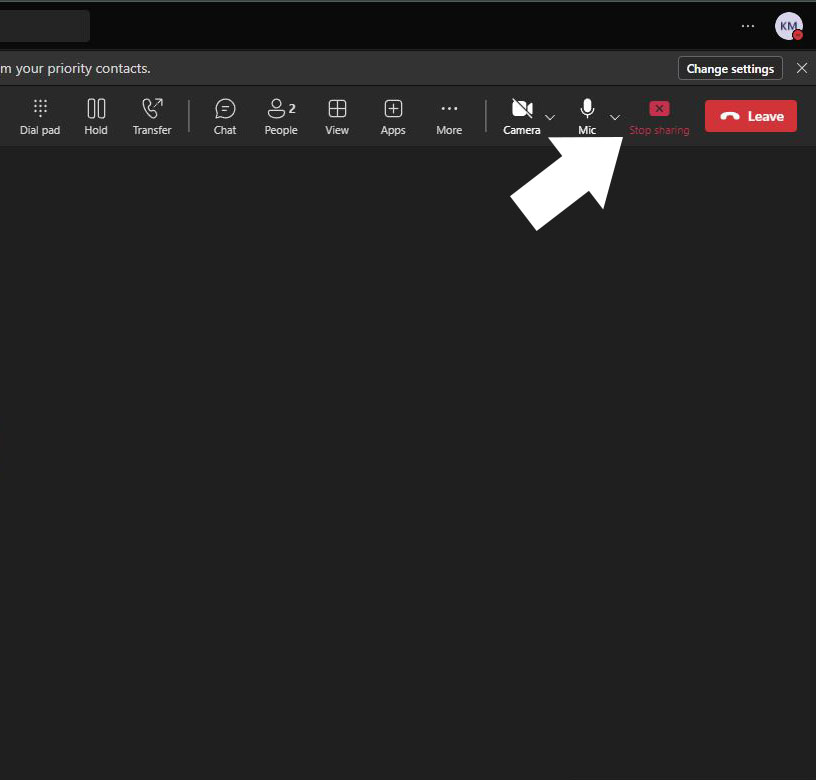
- Stop Sharing: To stop sharing, click the “Stop Sharing” button, which appears at the top of the screen when sharing.
- Switch Content: If you need to switch what you’re sharing, click the “Share Content” button again and choose a different option.
Additional Tips
- Use Multiple Monitors: If you have multiple monitors, you can choose which one to share.
- Annotate: Use the annotation tools to draw or highlight on the shared screen for better clarity.
- Mute Notifications: Turn off or mute notifications to avoid interruptions during your presentation.
Conclusion
Screen sharing in Microsoft Teams is a powerful feature that enhances collaboration and communication. By following these simple steps, you can share your screen confidently and make your meetings more productive. Happy sharing!
Thank you for your sharing. I am worried that I lack creative ideas. It is your article that makes me full of hope. Thank you. But, I have a question, can you help me?
Your article helped me a lot, is there any more related content? Thanks!
Your article helped me a lot, is there any more related content? Thanks!
I don’t think the title of your article matches the content lol. Just kidding, mainly because I had some doubts after reading the article.
Thank you for your sharing. I am worried that I lack creative ideas. It is your article that makes me full of hope. Thank you. But, I have a question, can you help me?
Reading your article helped me a lot and I agree with you. But I still have some doubts, can you clarify for me? I’ll keep an eye out for your answers.
Your point of view caught my eye and was very interesting. Thanks. I have a question for you.